




How To Check Cpu Usage – a complete guide
If you want to know how to check CPU usage, the hidden and simple way is using the built in system tool that already exists on your computer.On Windows, press Ctrl + Shift + Esc to open Task Manager, then click the Performance tab and select CPU. You will instantly see real time CPU usage and which apps are slowing your PC.On Mac, open Activity Monitor from Applications Utilities and check the CPU tab to monitor performance.This one simple tool shows total usage, background processes, and the exact program causing high CPU load helping you quickly spot what is slowing down your computer.
In this guide, you will learn how to check CPU usage step by step using simple methods.
What Is CPU Usage?
CPU usage is the measurement of how much work your CPU is performing at any given time. It includes running programs, background tasks, system processes, and even small operations that happen invisibly in the background. High CPU usage is not always bad for example, rendering videos or playing games naturally uses a lot of CPU but if usage stays near 100% for no reason, it can indicate a problem like malware, software bugs, or unnecessary background processes. Understanding CPU usage helps you manage the performance of your computer , troubleshoot slowdowns, and maintain system health. It is a key factor in determining whether your CPU is efficient, overworked, or underutilized
Understanding the Role of the CPU
The CPU, or Central Processing Unit, is often called the brain of your computer. It is responsible for executing instructions from both your operating system and the programs you run. Every task on your computer whether it’s opening a web browser, typing in a document, or playing a video game requires the CPU to process data, perform calculations, and control other parts of the computer. It communicates with memory , storage, and input/output devices to make sure your commands are carried out efficiently. Essentially, the CPU decides what your computer does and how fast it does it, which makes it one of the most critical components in any computer system. A slow or overworked CPU can cause the entire system to feel sluggish or unresponsive.
What Does “CPU Percentage” Mean?
When you see “CPU percentage” in tools like Task Manager, it is showing how much of your CPU’s total capacity is currently being used. For example, if your CPU is at 50%, that means half of its processing power is in use, and the other half is idle. This number helps you understand how busy your computer is at any given moment. A low percentage usually means your system is running smoothly with room to spare, while a high percentage especially close to 100% means your CPU is working very hard. Monitoring CPU percentage is important because it helps you identify which programs or processes are consuming the most resources and can help prevent overheating or performance issues.
Introduction to CPU Monitoring
If you have ever wondered how to check CPU usage, you are not alone. Many people notice their computer slowing down but don’t know why. In most cases, the central processing unit (CPU) is working too hard. Learning how to check CPU usage helps you understand what’s happening behind the scenes.
The CPU is often called the brain of your computer. It handles tasks, runs programs, and processes data. When CPU usage is high, your system may lag, freeze, or overheat. That’s why knowing how to check CPU usage is essential for keeping your device healthy.
Monitoring CPU usage gives you control. Instead of guessing, you can see exactly which apps consume resources. This guide explains how to check CPU usage on different systems in simple steps.
Understanding CPU Usage Metrics
When checking CPU usage, we must interpret the data correctly.
Key Metrics:
- User Time – CPU used by applications
- System Time – CPU used by OS processes
- Idle Time – Unused CPU percentage
- Load Average – Demand placed on CPU
A CPU running at 90 to 100% consistently indicates heavy workload or potential misconfiguration.
What Is CPU Usage and Why It Matters
CPU usage shows how much processing power your system uses.It reflects how hard your processor works at any moment.High CPU usage often slows performance dramatically.Low usage, however, keeps your device responsive and smooth.Therefore, monitoring CPU usage improves overall system stability.It also helps detect hidden background processes quickly.Moreover, it protects your hardware from overheating risks.
CPU usage refers to the percentage of processing power currently being utilized by running applications and system processes. When CPU usage consistently runs high, it can cause:
- System lag and freezing
- Application crashes
- Increased power consumption
- Hardware overheating
- Reduced overall system lifespan
Monitoring CPU utilization enables us to detect resource heavy programs, optimize performance, and maintain operational stability.
How to Check CPU Usage on Windows
Windows provides multiple built in tools for monitoring processor performance.
Using Task Manager to Check CPU Usage
The fastest way to check CPU usage on Windows is through Task Manager.
Steps:
- Press Ctrl + Shift + Esc
- Click on the Performance tab
- Select CPU from the left panel
Here we can see:
- Real time CPU usage percentage
- Base speed and current speed
- Number of cores and logical processors
- Up time
- Background process consumption
To identify which application is consuming the most CPU:
- Click on the Processes tab
- Sort by the CPU column
This instantly reveals high usage applications.
Using Resource Monitor for Advanced CPU Monitoring
For deeper analysis:
- Open Task Manager
- Go to the Performance tab
- Click Open Resource Monitor
In Resource Monitor, we can:
- View per process CPU consumption
- Monitor thread activity
- Track service level CPU usage
- Analyze system interrupts
This tool is particularly helpful for diagnosing persistent high CPU usage.
Using PowerShell to Check CPU Usage
For administrative or scripting purposes, PowerShell provides precise metrics.
Open PowerShell and run:
Get Process | Sort Object CPU Descending
This command lists processes sorted by CPU time.
To check total CPU load:
Get Counter Processor Processor Time
This returns the real time processor usage percentage.
How to Check CPU Usage on macOS
macOS offers built in performance monitoring tools that provide detailed CPU statistics.
Using Activity Monitor
- Open Finder
- Go to Applications
- Open Utilities
- Launch Activity Monitor
- Click the CPU tab
We can see:
- % CPU usage per process
- System vs user CPU usage
- Idle CPU percentage
- Threads and process IDs
To sort by highest CPU consumption, click the % CPU column header.
Using Terminal to Check CPU Usage
For command line monitoring:
Open Terminal and run:
top
This displays:
- Real time CPU usage
- System load averages
- Active processes
For a more readable format:
htop
(Requires installation via Homebrew.)
To check CPU usage summary:
“pee ess dash A dash oh percent see pee you pipe ay double you kay single quote s plus equals dollar one end print s percent single quote”
How to Check CPU Usage on Linux
Linux systems provide powerful monitoring tools for CPU diagnostics.
Using the top Command
Open Terminal and type:
top
This shows:
- CPU usage breakdown .
- Active processes
- Load averages
Press 1 to view per core CPU usage.
Using htop for Enhanced Monitoring
Install htop:
sudo apt install htop
Run:
htop
Features include:
- Color coded CPU graphs
- Per core visualization
- Interactive process management
Using mpstat for CPU Statistics
Install sysstat package:
sudo apt install sysstat
Run:
mpstat P ALL 1
This displays CPU usage per processor core every second.
Using vmstat for CPU Monitoring
vmstat 1
This shows:
- CPU idle percentage
- System interrupts
- Context switches
- Memory performance
How to Check CPU Usage in BIOS
This is less common but useful.
Restart your PC and enter BIOS
Some BIOS interfaces show real time CPU monitoring.
Why use BIOS?
To diagnose hardware level issues before the operating system loads.
How to Check CPU Usage Remotely
For remote diagnostics, we can use:
On Windows:
- Remote Desktop + Task Manager
- PowerShell Remoting
On Linux:
- SSH + top
- SSH + htop
Monitoring tools like Nagios or Zabbix
Remote monitoring ensures performance visibility across distributed systems.
If you manage servers or remote systems, knowing how to check CPU usage remotely is vital.
You can use:
- Remote Desktop
- SSH commands
- Monitoring software
How to Check CPU Usage on a Server
Server environments require proactive monitoring.
Using Command Line on Linux Servers
Commands:
- top
- htop
- uptime
- mpstat
- sar u 1 5
The uptime command shows load averages, which indicate CPU demand over time.
Using Windows Server Monitoring
On Windows Server:
- Open Task Manager
- Go to Performance
- Use Resource Monitor
For deeper insights:
- Open Performance Monitor
- Add counters for Processor Processor Time
- This enables long term CPU tracking.
How to Monitor CPU Usage in Real Time
For continuous tracking:
Windows:
- Performance Monitor
- Third party tools like HWMonitor
macOS:
- Activity Monitor
- iStat Menus
Linux:
- htop
- Glances
Real time monitoring helps detect sudden CPU spikes instantly.
Third Party Monitoring Tools
Tools like MSI Afterburner or HWMonitor provide advanced real-time stats.
These are great for gamers or video editors pushing their systems hard.
Setting Alerts
Some monitoring apps allow alerts when CPU usage crosses a threshold. Perfect for servers or heavy workloads.
How to Check CPU Usage by Core
Modern processors contain multiple cores. Viewing usage per core helps diagnose imbalanced workloads.
Windows:
- Task Manager → Performance → CPU → Right-click graph → Change graph to Logical processors
macOS:
- Activity Monitor → Window → CPU Usage
Linux:
- htop
- mpstat P ALL
Per core monitoring is crucial for performance tuning.
How to Check CPU Usage History
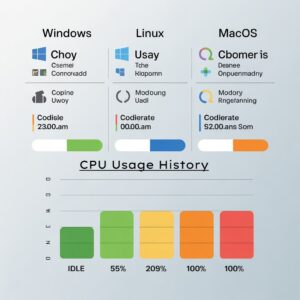
Understanding trends over time is critical.
Windows:
- Performance Monitor
- Event Viewer logs
Linux:
- sar
- Log files in var log sysstat
macOS:
- Third party tools like iStat
Historical data helps detect recurring performance bottlenecks.
What Is Considered Normal CPU Usage?
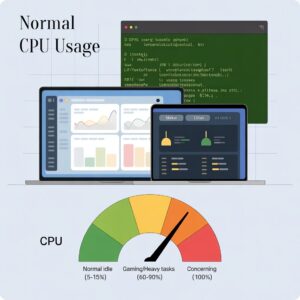
Idle State
5 to 15% is normal when doing nothing major.
Gaming & Heavy Tasks
60 to 90% during gaming or video rendering is expected.
But staying at 100% constantly? Not normal.
Best Tools to Check CPU Usage
Several reliable tools enhance monitoring precision. Choose tools that fit your system needs
- Windows Task Manager
- macOS Activity Monitor
- Linux Top and Htop
- Third party system monitoring software
However, avoid suspicious downloads online. Always use trusted sources for security.Beyond built in tools, third party software helps track performance.Popular options include:
- HWMonitor
- Core Temp
- NZXT CAM
These tools provide temperature tracking and detailed performance reports.Using professional tools strengthens your understanding of how to check CPU usage in realworld conditions.
Common Causes of High CPU Usage
Understanding how to check CPU usage is only half the battle. You also need to know why it spikes.Common reasons include:
- Too many startup programs
- Malware or viruses
- Outdated drivers
- Background updates
- Browser tabs overload
If CPU usage stays high even when idle, it is time to investigate further.
Background Apps
Too many startup apps running quietly.
Malware or Viruses
Malicious programs often run hidden and consume CPU.
Outdated Drivers
Old drivers can cause inefficiencies.
How to Reduce High CPU Usage
If CPU usage is too high, we can take corrective actions.
- Identify and End Resource Heavy Processes
Use Task Manager, Activity Monitor, or top to stop unnecessary programs.
- Disable Startup Applications
Reduce background apps that auto launch.
- Update Drivers and Software
Outdated drivers can cause CPU spikes.
- Scan for Malware
Malicious software often consumes CPU resources.
- Upgrade Hardware
Increase RAM or upgrade to a multi-core processor if usage remains consistently high.
6.End Unnecessary Tasks
Open Task Manager → End heavy tasks you don’t need.
7.Disable Startup Programs
In Task Manager → Startup tab → Disable unnecessary apps.
8.Update Software
Keep Windows, macOS, or Linux updated.
Updates fix performance bugs.
CPU Usage vs CPU Temperature
High usage increases temperature.
But high temperature can also slow performance due to thermal throttling.
It’s like running a marathon in extreme heat. You will slow down to survive.
Monitor both for optimal health.
CPU Usage vs CPU Load: Key Difference
- CPU Usage Current percentage being used
- CPU Load Number of processes waiting for CPU
High load with low usage can indicate I/O bottlenecks rather than CPU strain.
When to Worry About CPU Usage
Temporary spikes are completely normal.However, constant 90% usage signals danger.
Persistent overload can damage components long term.Therefore, investigate problems immediately.Do not ignore unusual system slowdowns.Fast action prevents costly hardware repairs.
How is 100% of my CPU being used?
Your CPU can reach 100% usage when many programs or system tasks are running at the same time. Even if you don’t see any apps open, things like Windows updates, antivirus scans, background software, or malware can use all of your CPU power. Sometimes a single program with a bug or heavy processing need can also make your CPU work at full capacity.
How to limit CPU to 95%?
To stop your CPU from running at full power, you can use software like Process Lasso on Windows to limit how much CPU a program can use. You can also change the CPU priority or affinity in Task Manager so some programs don’t use all cores. On Linux, a command called cpulimit can control CPU usage for specific processes.
Why is my CPU running at 100% with nothing open?
Even if your screen looks empty, background tasks may still run. Windows has many hidden processes like updates, system maintenance, antivirus scans, or indexing files. Malware can also silently use CPU. You can open Task Manager and look at which processes are using the most CPU to find the cause.
How to cap CPU usage to 99%?
You can set a maximum limit for CPU use with programs like BES or ThrottleStop on Windows. These programs prevent any process from using 100% of your CPU. On Linux, commands like cpulimit or nice let you assign a CPU usage limit to certain programs so your system stays responsive.
How to fix a CPU stuck at 100%?
If your CPU is constantly at 100%, try restarting your computer first. Close programs that are using too much CPU in Task Manager. Update your system and drivers, scan for viruses, and check for malware. If a particular process keeps running high, ending it or reinstalling the program can help reduce CPU usage.
What are the signs of a dead CPU?
A CPU might be failing if your computer won’t start or shows a black screen. You may hear continuous beeping when you turn on the PC. Other signs include random crashes, freezes, shutdowns, or your BIOS not recognizing the CPU at all. Usually, these are rare but serious issues.
What is the lifespan of a CPU?
Most modern CPUs can last 7 to 10 years or more if used normally. Lifespan depends on heat, workload, voltage, and maintenance. Overheating, overclocking, or poor cooling can shorten life. Interestingly, many CPUs outlast motherboards, so sometimes your motherboard fails before the CPU does.
How to test if a CPU is faulty?
To check your CPU, you can use stress-testing programs like Prime95, AIDA64, or IntelBurnTest. Watch your CPU temperature and system stability. If your computer crashes, shows errors, or overheats during normal use or stress tests, it could indicate a problem with the CPU.
How to tell if a CPU needs to be replaced?
You may need a new CPU if it constantly overheats, causes frequent crashes, or fails stress tests. If your PC won’t boot even after checking other hardware, the CPU could be the cause. Replacement is usually the last step after ruling out problems with RAM, motherboard, or software.
Why is my CPU running at 100% with nothing open?
Even if your screen looks empty, background tasks may still run. Windows has many hidden processes like updates, system maintenance, antivirus scans, or indexing files. Malware can also silently use CPU. You can open Task Manager and look at which processes are using the most CPU to find the cause.
Best Practices for CPU Performance Optimization
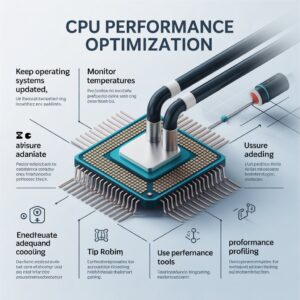
To maintain optimal CPU health:
- Keep operating systems updated
- Avoid unnecessary background services
- Monitor temperatures
- Ensure adequate cooling
- Use performance profiling tools
- Regularly audit running processes
Proactive monitoring prevents sudden system failures.
Final Thoughts on Checking CPU Usage
Checking CPU usage takes only minutes.Yet, it protects your system from serious risks.
Regular monitoring ensures peak performance consistently.Moreover, optimized CPU usage extends hardware lifespan.Stay proactive and maintain system health daily.Your computer will run faster and safer every time.Checking CPU usage isn’t just for tech geeks.It is for anyone who wants a faster, smoother computer.Think of it like checking your car’s dashboard when a warning light appears. Ignore it, and problems grow. Check it early, and you stay in control.Now you know exactly how to check CPU usage on Windows, Mac, Linux, and even BIOS.Simple tools. Powerful insights.Your computer’s brain deserves attention.
Conclusion
Checking CPU usage is an important step to understand how your computer is performing. By monitoring CPU usage, you can identify which programs or background processes are using the most resources, troubleshoot slow performance, and prevent overheating or crashes. Tools like Task Manager on Windows, Activity Monitor on Mac, or commands like top and ps on Linux make it easy to see real-time CPU usage. Regular monitoring helps you keep your system running smoothly and ensures your CPU isn’t overworked.
FAQs
Q1: Can high CPU usage damage my computer?
Yes, constant 100% CPU usage can cause overheating and reduce the lifespan of components if cooling is insufficient.
Q2: Is it normal for the CPU to reach 100% sometimes?
Yes, especially during heavy tasks like gaming, rendering videos, or running updates.
Q3: Will restarting my computer lower CPU usage?
Yes, restarting can stop stuck processes and temporarily reduce CPU usage.
Q4: Can malware cause high CPU usage?
Yes, malicious programs can run in the background and use a lot of CPU power.
Q5: How do I check CPU usage on Windows?
Open Task Manager and look at the Performance or Processes tab.
Q6: How do I check CPU usage on Linux?
Use commands like top or htop to view CPU usage in real time.
Q7: Can CPU usage affect battery life?
Yes, higher CPU usage drains laptops faster because the processor consumes more power.


