



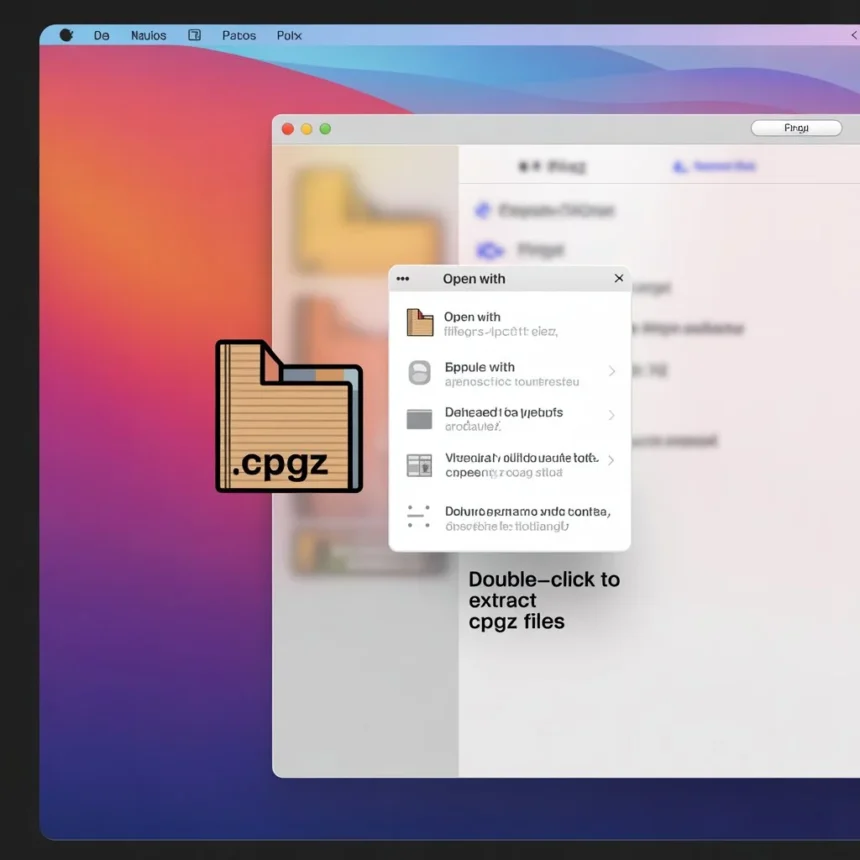
Cpgz File How To Open Mac – 2 Unlock Full Fix Stop File Loops Tap Now
To open a stubborn CPGZ file on your Mac, first make sure the download is completed fully. Use Archive Utility or a tool like The Unarchiver to extract the file. If it keeps looping, rename the file from .cpgz to .zip and then extract again. This simple step stops the endless loop and lets the file open smoothly. Following this method ensures your files load correctly without errors
In this guide, we will walk you through the smartest ways to handle a CPGZ file on Mac, helping you save time and avoid common mistakes. After reading this, opening stubborn files will no longer be a problem.
Understanding CPGZ Files on Mac
CPGZ files are compressed archive files commonly created on macOS. They often originate from ZIP files that failed to extract properly. Opening these files requires specific steps because double-clicking may cause a loop without extraction.
What Is a CPGZ File?
A .cpgz file is a compressed archive format used on macOS. The extension stands for Compressed Archive GZip, essentially a ZIP file wrapped in a GZip container. It’s commonly encountered when downloading large files or software packages from the internet. Unlike standard ZIP archives, .cpgz files may appear to loop when extracted due to corruption or compression conflicts.
Why CPGZ Files Appear on Mac
CPGZ files usually appear when a ZIP file is corrupted or partially downloaded. The system converts the ZIP into CPGZ automatically. This prevents the file from opening normally.
Step 1: Using The Built-in Archive Utility
Mac’s Archive Utility is the first tool to try. Right click the CPGZ file and select “Open With” “Archive Utility.” Sometimes, repeated extraction is required to fully unzip the content.
Step 2: Using Terminal to Extract CPGZ Files
Terminal is a powerful option. Open Terminal, type cd followed by the file path, then run gunzip filename.cpgz. This forces the extraction and avoids looping errors.
Step 3: Using Third-Party Applications
Apps like The Unarchiver or Keka are excellent alternatives. They support multiple formats and often succeed where Archive Utility fails. Download and install, then drag the CPGZ file into the app for extraction.
Step 4: Checking for File Corruption
If extraction fails repeatedly, the file may be corrupted. Download the original file again if possible. Avoid interrupted downloads to prevent repeated CPGZ issues.
Step 5: Converting CPGZ to ZIP
Sometimes, renaming the file from .cpgz to .zip helps. Right-click the file, select “Rename,” and change the extension. Then use Archive Utility or a third-party app to open it.
Why CPGZ Files Cause Confusion on Mac
CPGZ files often confuse Mac users because they are not a standard format most people recognize. They appear when a ZIP file is corrupted or partially downloaded. Double-clicking a CPGZ file usually triggers a loop, where the system keeps creating another CPGZ file instead of extracting the content. This happens because macOS automatically converts problematic ZIP files into CPGZ to prevent errors during extraction. Many users mistake CPGZ for a separate file type, not realizing it’s simply a compressed archive that needs proper extraction tools. This combination of looping behavior and unclear file identity makes CPGZ files particularly frustrating for Mac users.
Key Features of a CPGZ File
- Compressed using GZip technology.
- Usually results from partially extracted ZIP files.
- Can contain multiple files and folders.
- Requires specific software or terminal commands to extract properly.
Why CPGZ Files Matter in Mac
CPGZ files are important on Mac because they are part of a compressed archive format (CPIO + GZIP) commonly used when packaging or transferring files. When you download a ZIP file that becomes corrupted or incomplete, macOS may automatically convert it into a .cpgz file during extraction. This makes CPGZ files relevant because they:
- Help preserve data structure when compressing or archiving files.
- Allow recovery attempts when a ZIP file fails to open properly.
- Are natively supported by macOS, meaning the system can easily compress or expand them without third-party tools.
- Occur often in downloads, so understanding them helps users fix “ZIP to CPGZ loop” issues.
In short, CPGZ files matter on Mac because they play a role in file compression, extraction, and troubleshooting corrupted downloads.
Common Errors When Opening CPGZ Files
Many Mac users face an annoying situation: double-clicking a CPGZ file opens Archive Utility, but instead of extracting the file, it creates another .cpgz file. This infinite loop is frustrating and often occurs with large or corrupted archives.
How CPGZ Differs From ZIP and Other Archives
While ZIP files are universally compatible across Windows, macOS, and Linux, CPGZ files are specifically optimized for Mac’s Archive Utility. TAR and RAR archives serve similar purposes but differ in compression algorithms. Understanding these differences helps troubleshoot extraction issues and choose the right method to open the file.
Common Reasons You Can’t Open a CPGZ File on Mac
Corrupted Downloads
One of the most common causes of the .cpgz loop problem is a corrupted download. Interrupted internet connections or browser errors can produce incomplete archives, which macOS cannot fully decompress.
System Compatibility Issues
Older macOS versions may struggle with newer compression algorithms. Ensure your macOS is updated to the latest version to minimize compatibility issues.
Software Limitations
Apple’s built-in Archive Utility handles most compressed files but may fail with certain CPGZ archives. Third-party apps often provide better error handling and extraction success rates.
Method 1: Using Mac’s Built-In Archive Utility
Extracting the CPGZ File
- Locate the .cpgz file in Finder.
- Right-click and select Open With Archive Utility.
- Wait for the extraction process. If it succeeds, your files will appear in the same folder.
Troubleshooting Archive Utility Errors
If double-clicking the .cpgz file creates another .cpgz, it indicates corruption. Try Method 2 or Method 3 for more advanced solutions.
Method 2: Using Terminal Commands
The ‘gunzip’ and ‘tar’ Command
- Open Terminal (Applications > Utilities > Terminal).
- Navigate to the file directory using:cd /path/to/file
- Extract the CPGZ file with:gunzip -c filename.cpgz | tar xvf –
Handling Permission Errors
If you encounter permission issues, prefix the command with sudo and enter your admin password:
sudo gunzip -c filename.cpgz | tar xvf –
Method 3: Using Third-Party Apps
Installing The Unarchiver
The Unarchiver is a free, reliable app to handle nearly any compressed file on macOS. Download it from the official site
, install, and open your .cpgz file directly.
Extracting Files with Keka
Keka is another popular extraction tool. Install it, drag your .cpgz file into the app, and it will decompress files efficiently, avoiding the looping problem.
Method 4: Re-Downloading the File
Avoiding Corrupt Downloads
Sometimes the simplest solution is to re-download the archive. Use a stable internet connection and verify the file size matches the source. Corrupted or partial downloads are often the cause of repeated .cpgz extraction failures.
Method 5: Checking File Extensions
Renaming .cpgz to .zip
You can rename the .cpgz extension to .zip. Often, this allows Archive Utility or third-party apps to process the file as a standard ZIP archive.
Using File Info to Verify
Right click the file, select Get Info, and confirm the type. This helps ensure the archive isn’t mislabeled, which can cause extraction loops.
Method 6: Repairing CPGZ Files
Using Terminal to Repair
Sometimes you can repair the archive via Terminal commands:
zip -FF filename.cpgz –out fixed.zip
Then try opening fixed.zip with Archive Utility or The Unarchiver.
Third-Party Repair Tools
Apps like WinRAR for Mac or Stellar File Repair can often fix corrupted .cpgz files that the default utility cannot handle.
Method 7: Alternative Extraction Techniques
Online Extraction Services
Websites like ezyZip allow you to upload .cpgz files and extract them without installing software, a convenient solution for occasional users.
Extracting on Another OS
Sometimes Windows or Linux tools handle problematic CPGZ files better. Transfer the file and try extraction using 7 Zip or other archive managers.
Tips to Avoid CPGZ File Problems in Future
- Always download files from trusted sources.
- Use ZIP files when possible.
- Keep your Mac updated; newer macOS versions handle compression better.
- Use third-party utilities for complicated archives.
Best Practices to Prevent CPGZ Issues
Regular Software Updates
Always verify downloads and avoid interrupting internet connections. A corrupted download is the most common cause of .cpgz extraction loops.
Avoid Repeated Download Loops
Keep your macOS and third-party utilities updated. Developers often release fixes for compatibility issues that affect CPGZ file extraction.
Tips for Smooth Extraction
- Keep macOS updated to ensure the latest Archive Utility version.
- Avoid using complex file paths with spaces or special characters.
- Use reliable sources for downloads to prevent CPGZ creation.
Why CPGZ Files Appear Instead of ZIP Extraction
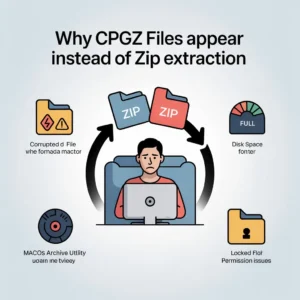
Mac users often face a loop where a ZIP file extracts into a CPGZ file, and vice versa. This happens due to:
- Corrupted ZIP archive: Missing or incomplete data prevents proper extraction.
- Insufficient disk space: Large files require more temporary storage during extraction.
- Faulty macOS Archive Utility: Built-in extraction tool may fail with complex archives.
- File permission issues: Restrictive permissions prevent proper read/write access.
Understanding these causes is critical to prevent recurring CPGZ extraction loops.
Preventing CPGZ Loop Issues
Preventing future extraction problems saves time and ensures file integrity. Follow these best practices:
- Check disk space: Ensure at least double the size of the archive is free on your Mac.
- Update macOS: Keep system and Archive Utility updated to avoid compatibility issues.
- Use reputable download sources: Avoid partially downloaded or corrupted ZIPs.
- Use third-party extraction tools for complex or large archives.
Extracting Large CPGZ Files Safely
Large CPGZ files may fail extraction due to memory constraints. To handle them safely:
- Split the archive using Terminal:split -b 500m largefile.cpgz part_
- Extract each part individually and combine after extraction.
- Avoid running multiple memory-heavy apps during extraction to reduce system load.
Alternative Methods for Accessing CPGZ Contents
Sometimes direct extraction fails. Alternative approaches include:
- Mounting the archive using Disk Utility: Useful for DMG-based CPGZ files.
- Converting the CPGZ to TGZ or ZIP: Terminal commands allow format conversion before extraction.
- Using online file extractors: Web-based tools can handle simple archives but avoid sensitive data.
Common Errors and Troubleshooting Tips
Error: “The archive is invalid or corrupted”
- Use Terminal to verify ZIP integrity.
- Repair using third-party tools if necessary.
Error: “Extraction Loop (ZIP → CPGZ → ZIP)”
- Use Terminal commands instead of Archive Utility.
- Ensure sufficient disk space and permissions.
Error: “Permission Denied”
- Adjust permissions using Terminal:chmod 755 filename.cpgz
- Retry extraction after updating access rights.
Best Practices for Managing CPGZ Files
- Always keep backups of original ZIPs or downloads.
- Verify downloads using checksums (MD5/SHA) before extraction.
- Document file paths to avoid misplacing extracted content.
- Prefer third party tools for complex multi-part archives.
For a simple guide on Cpgz File How To Open Mac, visit here: Blogenzamag
Conclusion
Opening CPGZ files requires patience and the right tools. Archive Utility, Terminal, and third-party apps provide reliable solutions. Always check for corruption to avoid extraction loops. Following these steps ensures smooth access to your compressed files on Mac.
FAQs
Q1: Why does my ZIP file become a CPGZ file?
A1: It usually happens due to file corruption or incomplete downloads. Mac automatically converts ZIP to CPGZ.
Q2: Can I open CPGZ files without Terminal?
A2: Yes, third-party apps like The Unarchiver or Keka can extract CPGZ files easily.
Q3: How do I prevent CPGZ files in the future?
A3: Ensure downloads complete fully and avoid corrupt sources. Keep macOS and utilities updated.
Q4: What if renaming to ZIP doesn’t work?
A4: Try using Terminal or re-download the file. Persistent errors usually indicate corruption.
Q5: Are CPGZ files safe to open?
A5: Generally yes, but always scan downloaded files for malware before extraction.


