




Android Activity Lifecycle – A Complete Guide
The Android Activity Lifecycle explains how an activity starts, runs, pauses, stops, and closes in an Android app. It includes important methods like onCreate, onStart, onResume, onPause, onStop, and onDestroy. Many apps fail because developers do not manage these states correctly, causing crashes, data loss, or slow performance. Understanding the lifecycle helps you save user data, handle screen rotation, and improve app stability. Mastering it ensures your app behaves smoothly in real world user scenarios.
In this article I provide you with a strong understanding of this concept to better app stability, improved performance, and a smoother experience for users across different devices.
Introduction to Android Activity Lifecycle
The Android activity lifecycle is one of the most important concepts every Android developer must understand. Whether you’re building a simple app or a complex enterprise solution, knowing how Android manages activities helps you create smooth, crash free, and user friendly applications.
In simple terms, the Android activity lifecycle defines how an activity starts, runs, pauses, resumes, and eventually stops. Android controls this flow to manage system resources efficiently. As a developer, you don’t control the lifecycle directly but you respond to it using callback methods.
Understanding the Android activity lifecycle early on saves time, prevents memory leaks, and improves app performance. And honestly, once it clicks, Android development feels much easier.
Role of Activities in Android Apps
Role of Activities in Android Apps
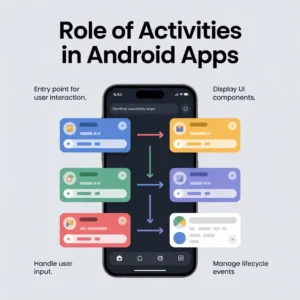
Activities act as the entry point for user interaction. When users tap an app icon, Android launches the main activity. From there, users may navigate to other activities.
Key responsibilities include:
- Displaying UI components
- Handling user input
- Managing lifecycle events
Without activities, Android apps wouldn’t have a visual structure.
Understanding the Android Activity Lifecycle Architecture
We approach the Android Activity Lifecycle as the core execution model that governs how Android applications behave in real world scenarios. Every Activity represents a single, focused task a user can perform. The Android operating system manages activities dynamically, responding to user interactions, system events, configuration changes, and resource constraints. Mastery of the lifecycle is essential for building stable, memory efficient, and responsive Android applications.
The lifecycle is implemented through a well-defined sequence of callback methods that the system invokes at specific points in an activity’s existence. These callbacks allow us to initialize components, manage UI state, persist data, release resources, and restore user context without performance degradation
Lifecycle and Modern Android Architecture.
Modern Android uses lifecycle aware components.Examples include ViewModel and LiveData
These tools reduce lifecycle complexity.ViewModels survive configuration changes.Thus, data persistence improves significantly.
Core Concepts Behind Android Activities
An Activity represents a single screen with a user interface. Every time a user opens a new screen like a login page or settings screen a new activity may be created.
Each activity follows a predefined lifecycle managed by the Android system. You don’t control the lifecycle directly, but you respond to it using lifecycle callback methods.
Why Android Activity Lifecycle Matters for SEO Apps
SEO focused apps require smooth navigation.Lifecycle management ensures fast page loading.
Moreover, stable behavior improves user retention.Search engines favor high engagement metrics.Thus, lifecycle optimization indirectly boosts rankings.
Why should you care about the Android activity lifecycle? Because Android is ruthless with resources. If your app doesn’t behave properly, the system will shut it down without asking nicely.
Understanding the lifecycle allows you to:
- Prevent app crashes
- Save user progress
- Improve performance
- Reduce memory leaks
- Build professional grade apps
In short, the lifecycle is the backbone of Android app development.
Lifecycle States and Their Execution Flow
An Android activity transitions through multiple states during its lifetime. Each state reflects the activity’s visibility and interaction level with the user.
onCreate – Activity Initialization Phase
The onCreate method marks the birth of an activity. We use this callback to perform initial setup operations that should occur once during the activity’s lifetime.
Key responsibilities include:
- Inflating the layout using setContentView
- Initializing UI components and view bindings
- Setting up dependency injection
- Configuring ViewModels
- Initializing data sources and observers
This method receives a Bundle object containing saved instance state data, enabling state restoration after configuration changes or process recreation.
onStart – Activity Becomes Visible
When onStart is invoked, the activity transitions into a visible state, although it is not yet interactive. At this stage, the UI is displayed, but user input is not fully enabled.
Typical usage includes:
- Registering broadcast receivers
- Binding to services
- Preparing UI elements for interaction
Refreshing UI data that may have changed while the activity was stopped
onResume – Foreground and User Interaction
The onResume callback signifies that the activity has entered the foreground and is ready for user interaction. This is the most critical active state.
We commonly use this method to:
- Start animations
- Resume camera or sensor access
- Register listeners requiring user focus
- Refresh dynamic content
Only one activity can remain in the resumed state at any given time, ensuring exclusive user focus.
onPause – Partial Visibility State
The onPause method is triggered when the activity loses foreground focus but remains partially visible. This happens when another activity overlays the current one, such as dialogs or multi window interactions.
Best practices include:
- Pausing animations
- Committing unsaved user input
- Releasing exclusive system resources
- Suspending intensive operations
Execution must be lightweight, as delays can affect system performance and user experience.
onStop – Activity No Longer Visible
When the activity becomes completely hidden, onStop is invoked. At this point, the activity is no longer visible to the user and may be terminated by the system if resources are constrained.
We utilize this callback to:
- Persist application data
- Unregister broadcast receivers
- Release memory heavy resources
- Stop background threads
This stage plays a crucial role in preventing memory leaks and performance bottlenecks.
onRestart – Activity Re entry Preparation
The onRestart callback is executed when an activity transitions from the stopped state back toward the foreground. This method precedes onStart.
Typical actions include:
- Reinitializing components released during onStop
- Resetting UI state
- Rebinding services
onDestroy – Activity Termination
The onDestroy method represents the final callback before an activity is destroyed. This can occur due to explicit user action or system initiated cleanup.
We use this method for:
- Final cleanup operations
- Releasing all remaining resources
- Terminating background tasks
This callback is not guaranteed to execute, so critical persistence logic should not rely solely on it.
Activity Lifecycle in Multi Window and Split-Screen Mode
Modern Android versions support multi window and split-screen modes, which significantly influence lifecycle behavior. In these modes, multiple activities can remain visible simultaneously, altering the traditional assumptions about foreground and background states.
Key considerations include:
- An activity can be visible but not in focus
- onResume may not imply exclusive user interaction
- onPause may be called without the activity becoming invisible
We design UI updates and resource handling with these nuances in mind to ensure smooth multitasking compatibility.
Android Activity Lifecycle Diagram Explained
A lifecycle diagram visually represents how activities move between states. It shows:
- Forward flow (create → resume)
- Backward flow (pause → destroy)
- System interruptions
Diagrams are especially helpful for beginners to understand transitions clearly.
Understanding the Activity States
Before diving into methods, let’s understand the states an activity can be in.
Active (Running) State
The activity is in the foreground, visible, and interacting with the user. This is where users tap, swipe, and scroll.
Paused State
The activity is partially visible but not in focus. For example, a dialog box appears on top of it.
Stopped State
The activity is completely hidden but still alive in memory. The user might have switched to another app.
Destroyed State
The activity is finished or removed from memory by the system to free resources.
Think of it like a shop: open, temporarily closed, locked, or demolished.
Saving and Restoring Instance State
The onSaveInstanceState method enables us to preserve transient UI data. The saved state bundle is passed back to onCreate or onRestoreInstanceState.
Common use cases include:
- Preserving scroll positions
- Retaining form inputs
- Restoring UI selections
This mechanism ensures seamless user experience during lifecycle interruptions.
Does android have an activity log?
Yes, Android does have activity logs, but they are not available as one simple, centralized log for users. Android mainly records activity through system logs such as Logcat, which track app actions, activity lifecycle events, system messages, and errors. These logs are primarily used by developers for debugging and performance monitoring.
For normal users, Android offers limited activity information through tools like Digital Wellbeing, which shows app usage, screen time, and notification history rather than detailed technical logs. Some device manufacturers also include basic system or security logs in settings, but access and detail depend on the device and Android version.
How many activity lifecycle methods exist in android?
In Android, there are six main activity lifecycle methods that manage the different states of an activity. These methods are onCreate, onStart, onResume, onPause, onStop, and onDestroy. Each method is called by the system at a specific stage of the activity’s life, from creation to termination.
In addition to these core methods, Android also provides onRestart, which is called when an activity is restarting after being stopped. Together, these lifecycle methods help developers control app behavior, manage resources efficiently, and ensure a smooth user experience as users navigate between apps.
What are the 4 pillars of Android ?
The four pillars of Android are the core components that form the foundation of Android application development. These include Activities, Services, Broadcast Receivers, and Content Providers. Each pillar plays a specific role in how an Android app works and interacts with the system.
Activities handle the user interface and user interactions. Services run background tasks without a user interface, such as playing music or syncing data. Broadcast Receivers respond to system-wide or app-specific events, like battery changes or incoming messages. Content Providers manage and share app data with other applications in a secure and structured way. Together, these four pillars enable Android apps to function smoothly and efficiently.
Activity Lifecycle Flow Diagram (Conceptual Explanation)
The lifecycle flows like this:
onCreate → onStart → onResume → (running) → onPause → onStop → onDestroy
Sometimes onRestart sneaks in when the activity comes back from the stopped state.
Activity Lifecycle in Multi Window and Split Screen Mode
Modern Android versions support multi window and split screen modes, which significantly influence lifecycle behavior. In these modes, multiple activities can remain visible simultaneously, altering the traditional assumptions about foreground and background states.
Key considerations include:
- An activity can be visible but not in focus
- onResume may not imply exclusive user interaction
- onPause may be called without the activity becoming invisible
We design UI updates and resource handling with these nuances in mind to ensure smooth multitasking compatibility.
Lifecycle Management in Real World Android Applications
We extend the Android Activity Lifecycle understanding by applying it to real world application scenarios where user behavior, background execution, and system constraints intersect. In production-grade applications, lifecycle handling goes beyond theory and directly impacts app reliability, crash rates, and user retention.
Applications frequently move between foreground and background due to incoming calls, notifications, multitasking, or system triggered memory reclamation. Lifecycle aware implementation ensures that the app responds predictably under all these conditions without data loss or UI inconsistencies.
Real World Example of Activity Lifecycle
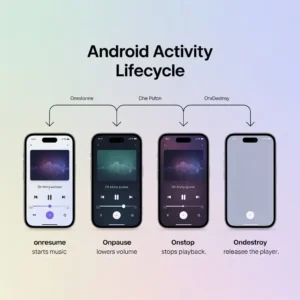
Imagine a music app:
- onResume starts music
- onPause lowers volume
- onStop stops playback
- onDestroy releases the player
Simple, logical, and user friendly.
Real World Use Cases and Examples
Examples include:
- Music apps pausing playback during calls
- Video apps resuming playback after interruption
- Banking apps saving data before backgrounding
These apps rely heavily on proper lifecycle handling.
Android Activity Lifecycle vs Fragment Lifecycle
Fragments have their own lifecycle, slightly more complex than activities. While activities manage screens, fragments manage parts of the UI.
Understanding both is crucial for modern Android development.
| Aspect | Activity | Fragment |
|——|———|
| Scope | Whole screen | Part of screen |
| Lifecycle | Independent | Depends on activity |
| Use case | Main screens | Reusable UI components |
Fragments add complexity but offer flexibility.
Common Lifecycle Scenarios
User Presses Home Button
- onPause → onStop
Screen Rotation
- onPause→ onStop → onDestroy → onCreate → onStart → onResume
Switching Between Apps
- Similar to pressing the Home button
App Killed by System
- No callback guaranteed always save state proactively
Activity Lifecycle and Configuration Changes
Configuration changes such as screen rotation, locale changes, dark mode toggling, and multi-window resizing trigger activity recreation by default. The system destroys and recreates the activity to apply new configurations.
Key lifecycle sequence during configuration change:
- onPause
- onStop
- onDestroy
- onCreate
- onStart
- onResume
To maintain UI state, we leverage:
- onSaveInstanceState
- ViewModel architecture components
- Persistent storage mechanisms
Handling Configuration Changes Effectively
Configuration changes recreate activities automatically.Examples include screen rotation and language changes Therefore, lifecycle awareness becomes essential.Use onSaveInstanceState wisely.Restore UI state during recreation As a result, user experience remains consistent.
Screen rotations and language changes can recreate activities. To handle this:
- Save state properly
- Use ViewModel
- Avoid storing data directly in activities
Configuration changes are like sudden weather changes. You must be prepared.
Lifecycle Callback Methods Overview
Android provides callback methods that allow you to react to lifecycle changes. Let’s break them down.
onCreate
This is where everything begins.
Purpose:
- Initialize UI
- Set layout using setContentView
- Initialize variables
This method is called once when the activity is created.
onStart
The activity becomes visible to the user here.
Use cases:
- Register listeners
- Prepare UI components
The activity isn’t interactive yet but it’s almost there.
onResume
Now the activity is in the foreground and ready for interaction.
Best uses:
- Start animations
- Resume camera or sensors
- Handle user input
This is where the app feels “alive.”
onPause
Called when another activity partially covers the screen.
Important tasks:
- Save user data
- Pause animations
- Stop heavy processes
Keep this method fast. Android might kill your activity after this.
onStop
The activity is no longer visible.
What to do here:
- Release resources
- Stop background tasks
This helps conserve system memory.
onRestart
Triggered when the activity is coming back from a stopped state.
It’s usually followed by onStart.
onDestroy
The final call before the activity is destroyed.
Use carefully:
- Clean up memory
- Close database connections
Note: This method isn’t always guaranteed to be called.
Lifecycle Callback Methods Explained
Now let’s break down the heart of the Android activity lifecycle callback methods.
onCreate
This is where everything begins.
When and Why onCreate Is Called
onCreate is called when the activity is first created. This is where you:
- Set the layout
- Initialize variables
- Bind UI elements
- Set up listeners
It’s like unpacking boxes when you move into a new house.
onStart
Called when the activity becomes visible to the user. The activity is preparing to enter the foreground.
onResume
This method is triggered when the activity starts interacting with the user. Animations, sensors, and live updates usually start here.
If your app were a car, onResume is when you hit the accelerator.
onPause
Called when the activity is partially obscured. This is the place to:
- Save lightweight data
- Pause animations
- Release shared resources
Never do heavy operations here it should be quick.
onStop
The activity is no longer visible. You should:
- Stop background tasks
- Release heavy resources
- Save persistent data
onRestart
Called when an activity is restarting after being stopped. It’s like reopening an app that was minimized.
onDestroy
This is the final call before the activity is destroyed. Clean up everything here by threads, receivers, and memory heavy objects.
Lifecycle Impact on Performance Optimization
Proper lifecycle management directly influences:
- Application startup time
- Memory utilization
- Battery efficiency
- UI responsiveness
By releasing unused resources promptly and resuming operations intelligently, we achieve high performance Android applications that scale across devices and OS versions.
Lifecycle Aware Components
Modern Android development encourages the use of lifecycle aware components provided by Android Jetpack. These components automatically respond to lifecycle changes, reducing boilerplate code and preventing leaks.
Key lifecycle aware tools include:
- ViewModel
- LiveData
- LifecycleObserver
- SavedStateHandle
These components ensure robust state management across lifecycle transitions.
Handling Background Tasks with Lifecycle Awareness
Background execution must align with lifecycle boundaries to prevent excessive resource consumption. We integrate lifecycle aware task handling by:
- Suspending tasks during onPause or onStop
- Resuming tasks responsibly during onStart or onResume
- Offloading long running work to WorkManager or foreground services
This approach maintains system compliance and battery efficiency.
Advance Lifecycle Handling with Process Death
The Android system may terminate an application process while it is in the background. When the user returns, the activity is recreated from scratch.
To handle this scenario effectively, we rely on:
- ViewModel with SavedStateHandle
- Persistent storage
- Defensive state restoration strategies
This ensures data integrity and continuity across process recreation.
Lifecycle Integration with ViewModel and LiveData
We strengthen lifecycle handling by integrating ViewModel and LiveData, which decouple UI logic from activity recreation. ViewModels survive configuration changes and maintain business logic consistency.
Advantages include:
- Automatic lifecycle awareness
- Reduced boilerplate code
- Seamless data retention across rotations
- Improved separation of concerns
This architecture ensures scalable and testable Android applications.
Navigation Component and Lifecycle Coordination
The Android Navigation Component simplifies activity and fragment transitions while maintaining lifecycle integrity. It ensures:
- Proper back stack handling
- Predictable lifecycle transitions
- Safe argument passing
- State preservation across navigation flows
By aligning navigation actions with lifecycle callbacks, we achieve consistent UI state management.
Lifecycle Testing and Debugging Strategies
We validate lifecycle behavior through rigorous testing and debugging techniques. Effective strategies include:
- Simulating configuration changes
- Forcing background and foreground transitions
- Using Android Studio Profiler
- Monitoring lifecycle logs
- Testing low memory conditions
These practices uncover edge cases that could otherwise degrade user experience and app performance.
Activity Lifecycle and Security Considerations
Lifecycle management also plays a role in application security. Sensitive data displayed on screen must be protected when the activity loses focus.
We enforce security by:
- Obscuring sensitive UI during onPause
- Clearing clipboard data
- Locking screens on inactivity
- Preventing screenshots when required
This ensures data privacy across lifecycle transitions.
Lifecycle Patterns for Enterprise Scale Apps
Enterprise applications demand robust lifecycle strategies to handle complex workflows. We implement standardized lifecycle patterns that include:
- Centralized lifecycle observers
- Base activity abstractions
- Consistent resource cleanup policies
- Modular component initialization
These patterns enable maintainable and extensible codebases.
Common Mistakes in Android Activity Lifecycle
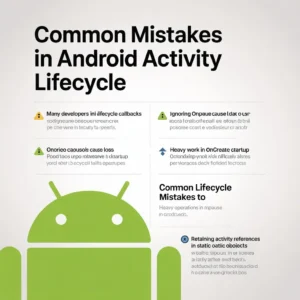
Many developers misuse lifecycle callbacks.Ignoring onPause causes data loss.
Likewise, heavy work in onCreate slows startup Another mistake involves memory leaks.
Holding context references creates issues.Therefore, follow lifecycle guidelines strictly.
Common Lifecycle Mistakes to Avoid
We eliminate lifecycle related issues by avoiding:
- Heavy operations in onPause
- Retaining activity references in static objects
- Ignoring configuration changes
- Failing to unregister listeners
- Mismanaging background threads
Adhering to lifecycle best practices results in crash free and maintainable codebases.
Common Mistakes Developers Make
Some frequent errors include:
- Not saving state in onPause
- Performing heavy tasks in onCreate
- Ignoring configuration changes
- Misusing onDestroy
Avoiding these mistakes improves app stability.
Best Practices for Android Activity Lifecycle
Here are proven best practices:
- Keep lifecycle methods lightweight
- Release resources early
- Use architecture components
- Test lifecycle edge cases
Following these ensures scalable and maintainable apps.
Lifecycle and Memory Management Best Practices
Effective lifecycle control is fundamental to memory optimization. We reduce memory pressure by:
- Nullifying view references in onDestroy
- Avoiding static references to activity contexts
- Leveraging application context when appropriate
- Using weak references for callbacks
Proper memory management minimizes OutOfMemoryErrors and ANRs, ensuring application stability.
Tips to Master Android Activity Lifecycle
- Log lifecycle methods
- Test on low memory devices
- Simulate rotations
- Read system logs
Practice makes perfect.
Future of Activity Lifecycle with Modern Android
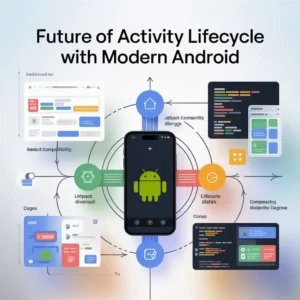
With Jetpack, Lifecycle aware components, and Compose, managing lifecycles is becoming easier and safer. Still, the fundamentals remain the same.
Android platform evolution continues to refine lifecycle behavior. By adhering to modern lifecycle principles, we future-proof applications against OS updates, device diversity, and emerging form factors.
We emphasize:
- Jetpack libraries
- Declarative UI approaches
- Lifecycle driven architecture
- Backward compatibility strategies
This forward-looking approach ensures long-term application viability.
Conclusion
The Android Activity Lifecycle defines the operational backbone of every Android application. By mastering lifecycle callbacks, managing state intelligently, and adopting lifecycle aware components, we build applications that are resilient, efficient, and user-centric. Precise lifecycle control enables seamless user experiences across diverse devices, configurations, and usage patterns.
FAQs
1. What is the Android activity lifecycle?
It’s the sequence of states an activity goes through from creation to destruction.
2. Why is onPause so important?
Because Android may kill your app after it, making it the last safe point to save data.
3. How many lifecycle states are there?
There are seven main callback methods managing lifecycle states.
4. What happens during screen rotation?
The activity is destroyed and recreated unless handled manually.
5. Can onDestroy be skipped?
Yes, Android doesn’t always call it due to system constraints.
6. How can I manage lifecycle efficiently?
Use ViewModel, LiveData, and follow best practices.


